EmberFrostOne-handed games9 min read
One-handed games for iPhone: how to spot one-thumb play
One-handed games for iPhone need portrait play, thumb-reach controls and no clock. How to check a game before you download it, and settings that help.
A game is truly playable with one hand when it runs in portrait, keeps its main controls in the lower middle of the screen, never needs two fingers, doesn't rush you, and stops and saves the moment you look away. You can check most of that on the App Store page before you download anything.
Maybe you're holding a baby, standing on a train, eating lunch or resting an injured hand. This guide covers what to look for, how to check a listing, the iPhone settings that help, and how EmberFrost, our cozy winter village builder, plays with one thumb.
What makes a game truly playable with one hand?
A game is playable with one hand when you can start it, play it and stop it with a single thumb while the same hand holds the phone. That sounds like a low bar, and plenty of games look simple enough to clear it. Small design choices still break it. A sideways screen forces a second hand onto the phone. A button parked in a top corner means shifting your grip every few seconds. A pinch to zoom needs two fingers by definition. A clock that keeps running punishes you for looking up, and a game that loses progress when you lock the screen punishes you for having a life. So the real test isn't whether a game is easy. It's whether the game fits around a hand that is also busy holding something. We use five checks, and a game should pass all five to count as fully one-handed:
- Portrait orientation. The game runs upright, the way one hand already holds the phone.
- Thumb reach. What you press often sits in the middle or lower part of the screen, and nothing needs a pinch.
- No timing pressure. Nothing hangs on split-second taps while you change your grip.
- Pause anytime. One tap, or simply leaving the app, stops the action.
- Saves on close. Locking the phone or a flat battery costs you close to nothing.
Where can your thumb actually reach?
The middle of the screen, more than the corners. In February 2013, UXmatters published a field study, How Do Users Really Hold Mobile Devices?, built on 1,333 observations of people using phones in public. Of the 780 people touching the screen, 49% held the phone in one hand, 36% cradled it in two hands while touching with one, and 15% used both hands.
People also changed grip often, sometimes every few seconds, and 67% of one-handed users touched with their right thumb, so a third used their left. In a 2017 comment, the study's author wrote that his thumb-reach drawings were wrong: people touch the center of the screen more readily and accurately than its edges and corners.
So controls you use all the time belong in the center and lower middle, and they should work for either thumb. Swapping hands helps your thumb, too: the NHS describes repetitive strain injury as pain caused by repeated movement of part of the body, with symptoms that usually start gradually. If your neck is what aches, our guide to tech neck covers what helps.
Why do timing, pausing and saving matter so much?
One-handed play happens in borrowed minutes, so interruptions are normal. A baby stirs. The train reaches your stop. A game that waits for you turns each of those into a pause; one that keeps running turns them into a loss.
Turn-based play fits best, because nothing moves until you do. Real-time games work too, if they stop when you leave. Look for three behaviors: the action stops when you switch apps or lock the screen, a pause is one tap away, and progress saves on its own, often. A game that only saves at the end of a level will catch you out sooner or later.
Next to a sleeping baby you'll play muted, so anything spoken should also appear as text.
How can you check a game before you download it?
Most of the five checks take a minute on the App Store page.
| What to check | Where to look | Good sign | Warning sign |
|---|---|---|---|
| Orientation | iPhone screenshots | Tall, upright screens | Wide, sideways screens |
| Controls | Description | Portrait, one thumb, tap, swipe | Pinch, two fingers, landscape |
| Timing | Description, screenshots | Turn-based, at your own pace, no timers | Timed rounds, a countdown on screen |
| Pausing and saving | Description, What's New | Auto-save, plays offline | Online-only play that drops with your signal |
| Sound | Description | Subtitles or text for spoken lines | Cues you have to hear |
Screenshots are the fastest test: they usually show the game in the orientation it runs in, so a row of wide images suggests a sideways game. Some App Store pages also have an Accessibility section listing supported features, but many games leave it empty.
Still unsure? If the game is free to start, try it standing up with one hand, and switch apps halfway through a move.
Which iPhone settings make one-handed play easier?
Apple's support pages describe four built-in features that help with any game:
- Reachability. Go to Settings > Accessibility > Touch, then turn on Reachability. On an iPhone with Face ID, swipe down on the bottom edge of the screen to lower the top half within reach of your thumb. On iPhone SE, lightly double-tap the Home button. Tap the upper half of the screen to go back to full screen.
- Back Tap. Go to Settings > Accessibility > Touch > Back Tap, choose Double Tap or Triple Tap, then pick an action. Apple's Back Tap guide says a tap on the back can open Control Center or trigger features such as Reachability, with no thumb travel at all.
- AssistiveTouch. Go to Settings > Accessibility > Touch > AssistiveTouch and turn it on. For a game that insists on a pinch, tap the menu button, then Custom, then Pinch and Rotate. Two circles appear that you move and drag in or out with one finger, as Apple describes. Drag the menu button low, where your thumb already is.
- Rotation lock. Open Control Center and tap the Lock Rotation button. It turns red when locked, so a game that supports both orientations won't flip sideways as you shift your grip. If the button is missing, add it to Control Center.
How does EmberFrost play with one thumb?
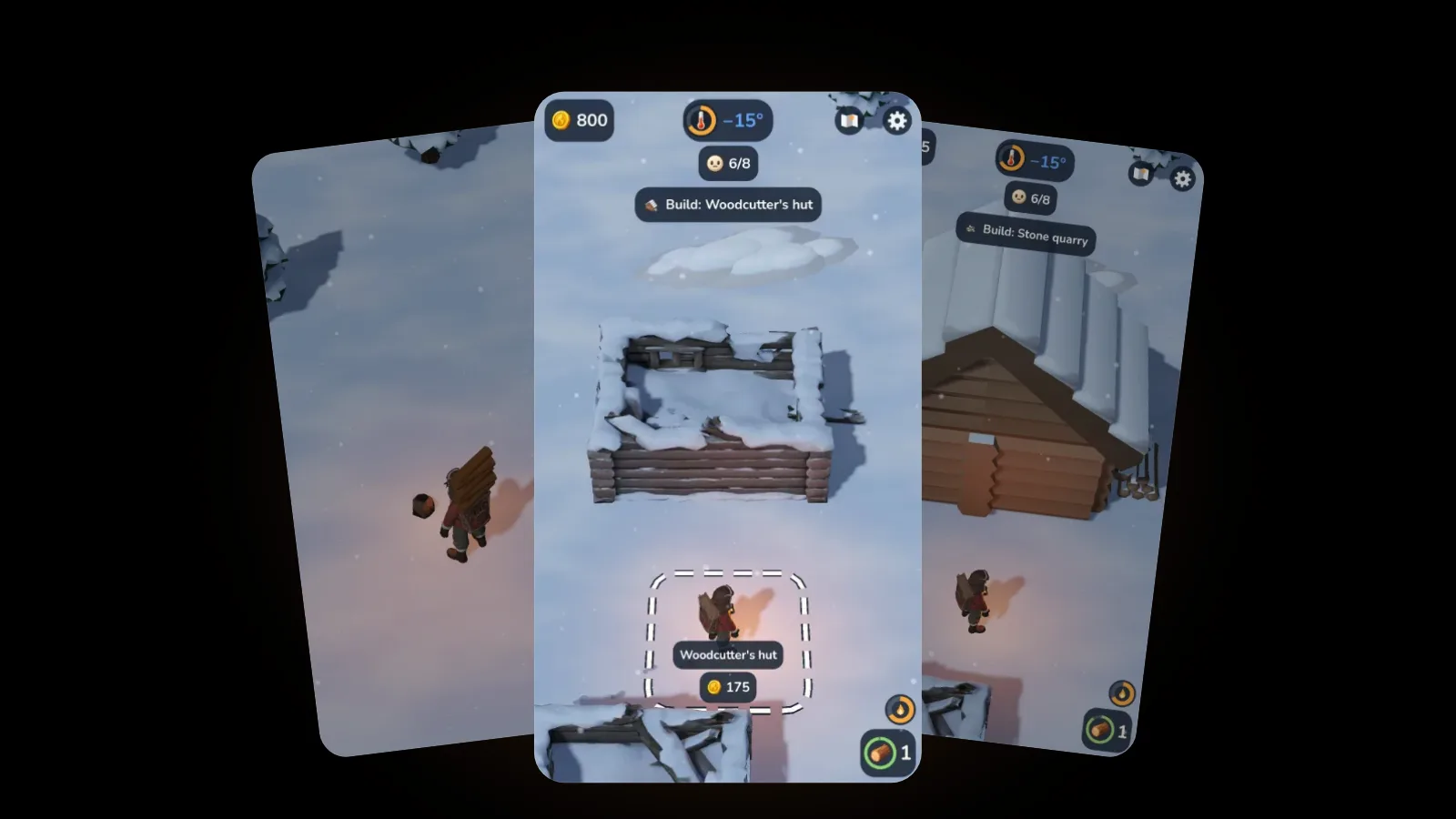
EmberFrost: Survival Tycoon runs in portrait only, and its App Store listing promises "portrait mode and simple one-thumb controls". Touch anywhere and a joystick appears under your thumb, so either hand works. A small dead zone means a resting thumb doesn't walk the hero off.
Walking is almost the whole control scheme. There's no button to chop, fish or build:
- Gather by staying close. Walk up to a tree, the ice hole or the quarry and stay nearby: the gathering happens by itself.
- Feed and sell by walking in. Walk into the fire pit to feed it, or onto a marked zone to drop or sell what you carry.
- Build by standing still. Stand on a dashed site with a coin price, and your coins go into the building.
- Story cards move on by themselves, about 4 seconds after the voice ends. A tap skips ahead, and choices such as your character and mode wait for you.
- The map works with one finger. Drag to look around, and double tap a place to zoom in on it. Pinch zoom works too, but double tap is the one-handed way.
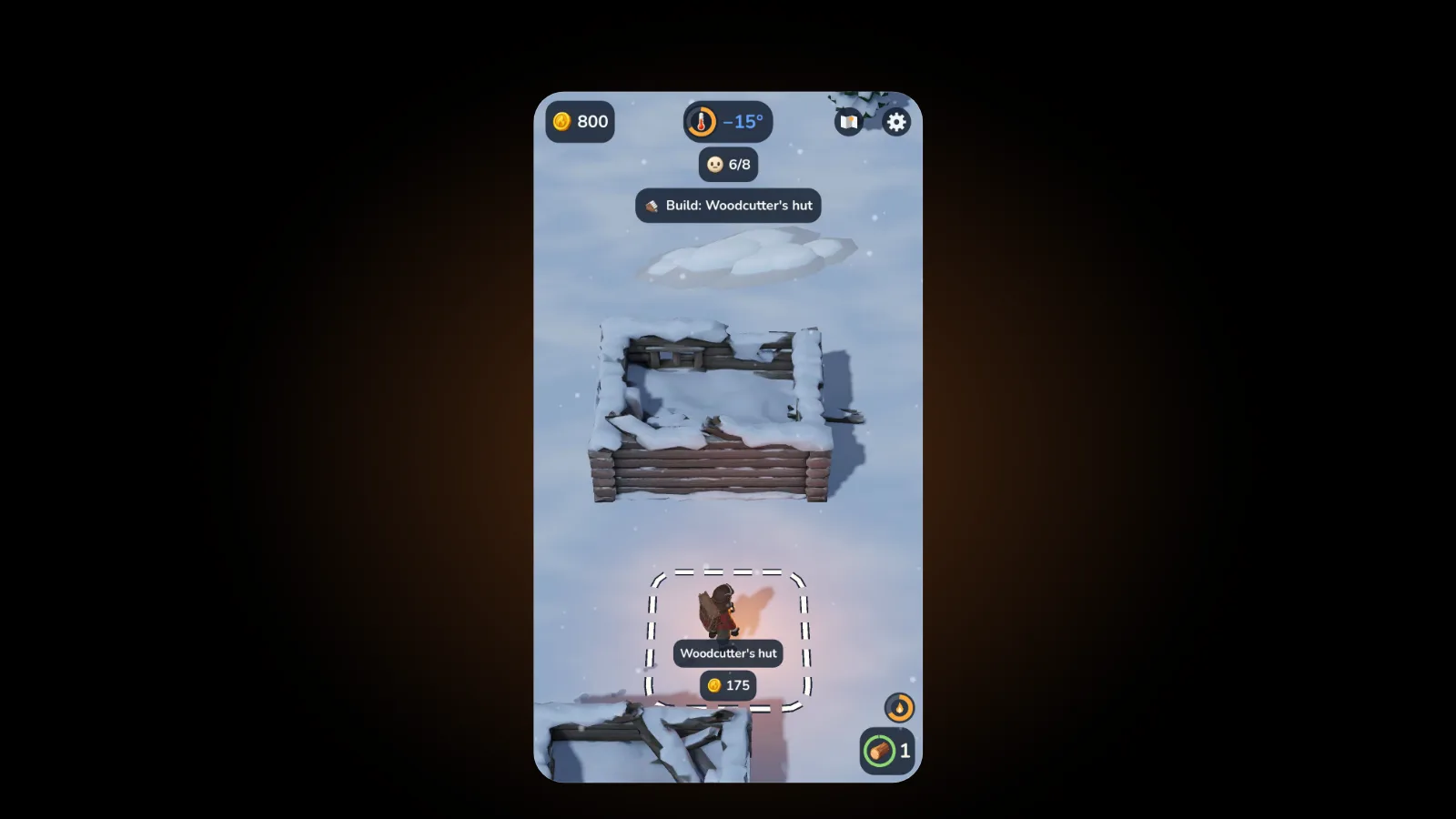
The one stretch is the top bar. Coins, temperature and the goal sit there to be read, not pressed, but the map and settings buttons share the top right corner. On a large phone, that's where Reachability earns its place. The sled's on and off button, unlocked later, sits at the bottom right.
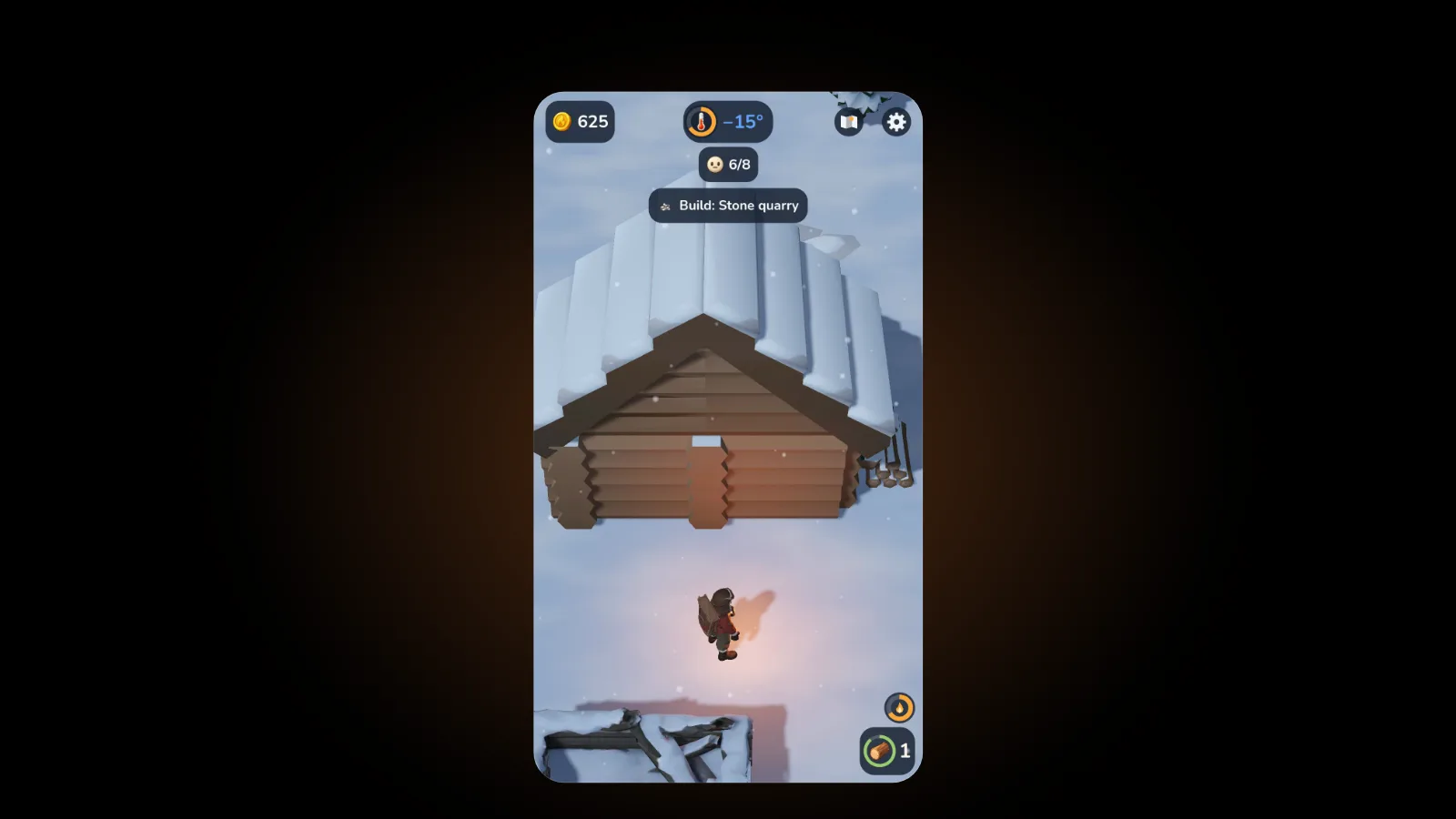
What happens when you put EmberFrost down mid-game?
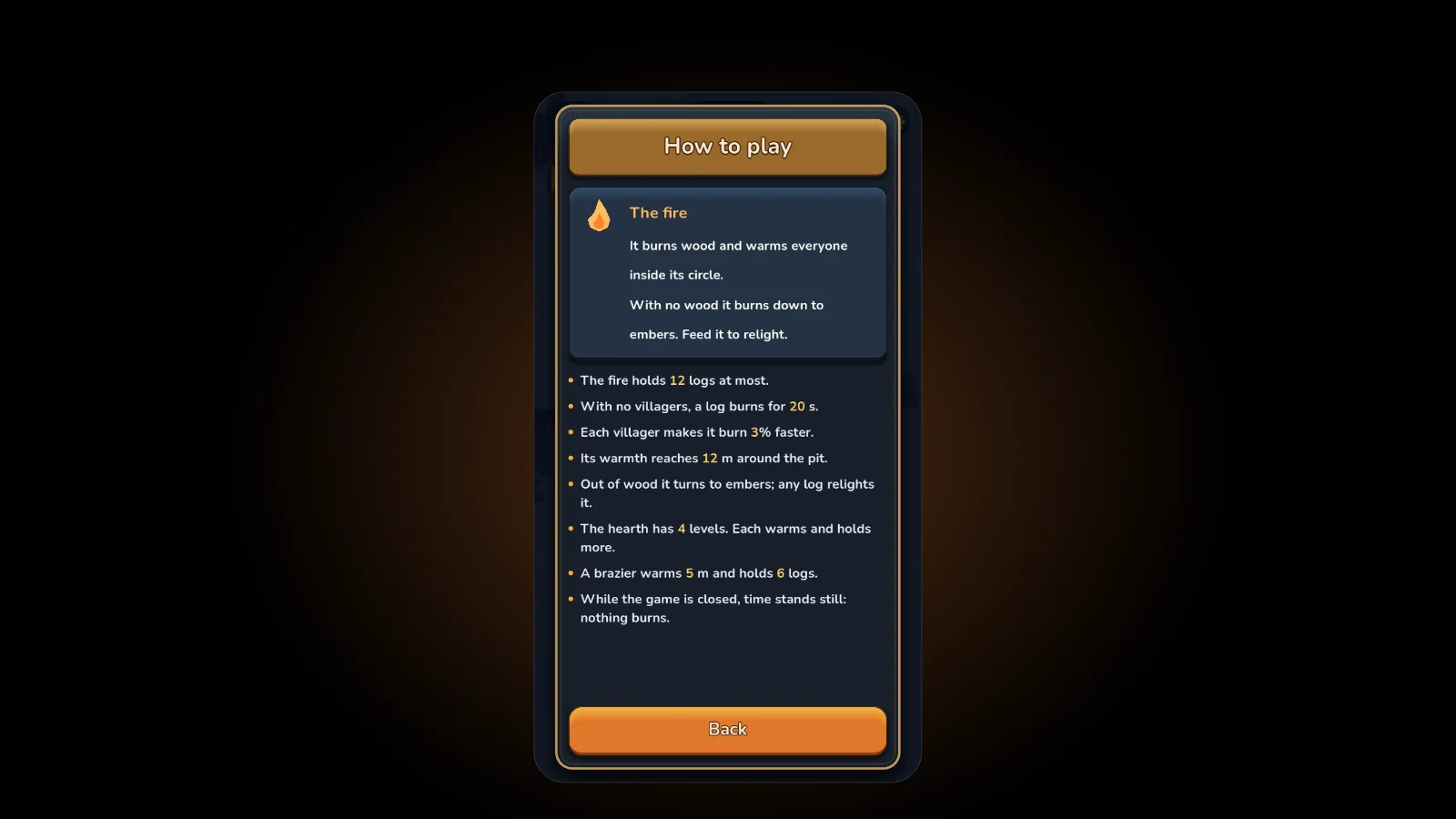
EmberFrost runs in real time while it's on screen, so the fire burns down if you leave the phone face up on the table. Close the app or switch away, though, and the game stops: nothing burns, nobody falls ill and nobody leaves. It saves every 30 seconds and again when the app goes to the background, so a flat battery costs you very little.
Need a pause without leaving? Opening the map pauses the game by default, and so does the settings screen. If interruptions are constant, pick Normal mode: the hero only slows down in the cold, while on Hard he falls ill after a minute of being chilled. Our Normal vs Hard guide compares the two.
It plays fine muted, since every voiced line also shows as text, and the listing says it plays fully offline with no waiting timers. For long trips, Battery saver runs it at 30 frames per second with lighter effects. We explain why the game has no offline time in the idle tycoon game you actually play, and our guide to offline games for iPhone covers playing with no signal.
FAQ
What makes a game good for one-handed play?
It runs in portrait, keeps its main controls in the center and lower part of the screen, and never needs two fingers. It also shouldn't punish you for looking away: no split-second timing, a pause that's always close, and automatic saves when you lock the phone or switch apps.
How can I tell if an iPhone game runs in portrait before downloading?
Look at the iPhone screenshots on its App Store page. Tall, upright screenshots usually mean portrait play, while wide ones usually mean landscape. Then read the description for words like portrait, one thumb, tap or swipe, and watch for pinch, landscape or timed.
Can you play EmberFrost with one hand?
Yes. It runs in portrait only, the joystick appears wherever your thumb touches, and you gather, sell and build by standing in place. On the map, drag with one finger and double tap to zoom in. Only the map and settings buttons sit at the top.
Can I play EmberFrost while holding a baby?
Yes. It stops whenever you switch away, saves every 30 seconds, and every voiced line also shows as text, so it plays fine muted. It's rated 4+ and has no ads. See our EmberFrost guide for parents for what the game contains.
Get started
Download EmberFrost: Survival Tycoon on the App Store. It is free to start, has no ads, is rated 4+ and needs iOS 26 or later. Read more on the EmberFrost game page, learn the first hours with our beginner's guide, or browse every EmberFrost post.